Account Setup Steps
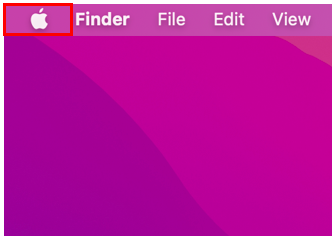
Click on the Apple logo in the top left of the home screen
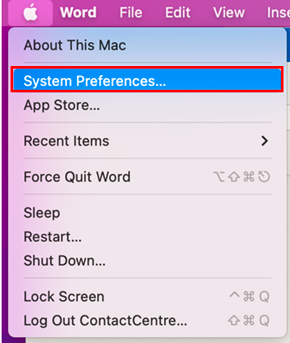
A list of options will appear. Click on System Preferences.
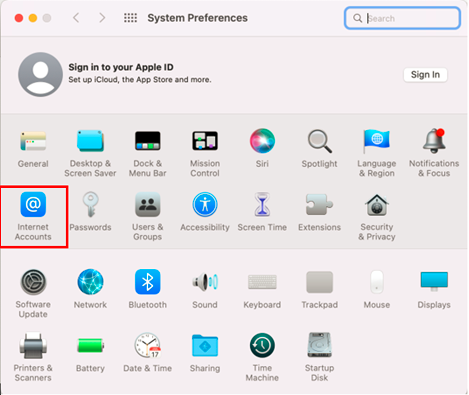
A new window will open with several options available. Select the option for Internet Accounts
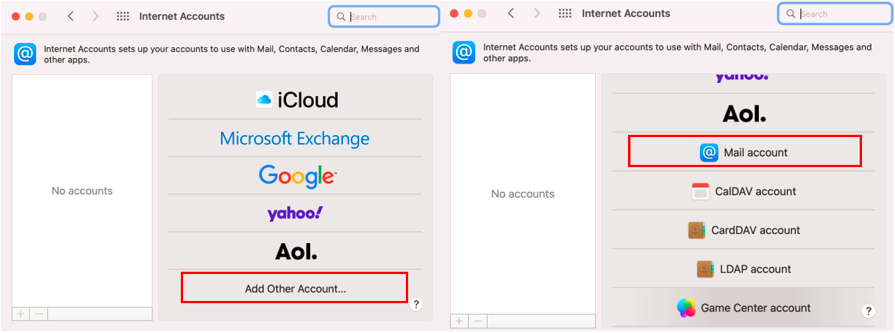
On the next window there will be an option for Add Other Account. Upon selecting this, the options will change, and you will be able to select Mail account.
On the next screen enter your account details and hit Sign In.

You will then be prompted to enter further details to verify your account by entering further details. Enter the details shown below into the Incoming Mail Server and Outgoing Mail Server sections as shown below. Also ensure you have selected IMAP as the Account Type then click Sign In again.
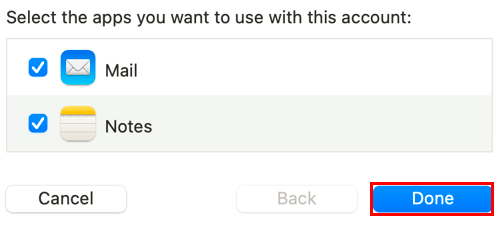
If your details were correct, you will now be presented with the screen below. Just click Done and your account will be added.